Browser extension
Save the page you're on, a link, some text, an image or a screenshot without leaving it.
Save the page you're on without leaving it. The Savedly extension for Chrome saves pages, links, selected text, images and screenshots straight into your library, and uses the sign-in you already have at savedly.app.
Install it
- Open Savedly in the Chrome Web Store and choose Add to Chrome.
- Pin it: open Chrome's extensions menu (the puzzle piece) and pin Savedly, so its icon stays in the toolbar.
- Sign in at savedly.app in the same browser. The extension uses that sign-in, so there's nothing to set up inside it.
Save the page you're on
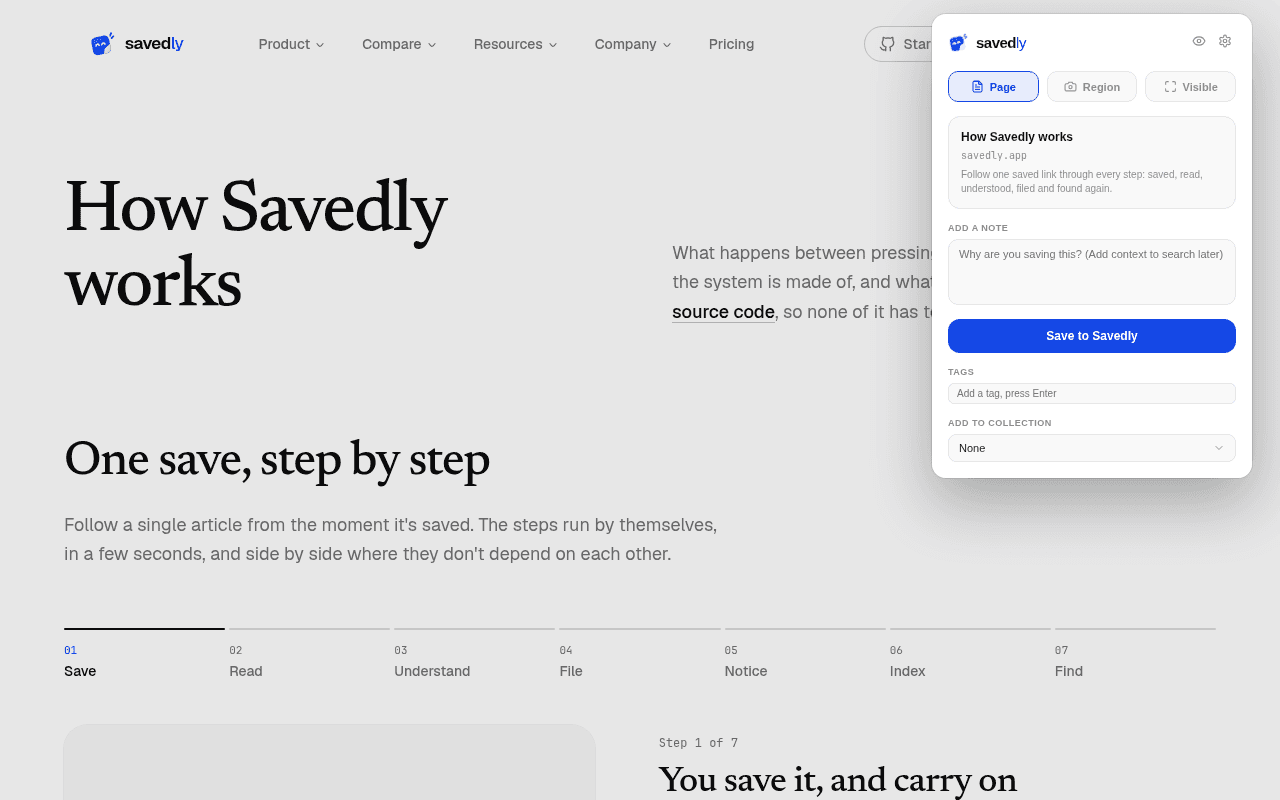
Click the Savedly icon in the toolbar. It shows the page's title and address, and you can add:
- A note, about why you're saving it. It helps you find it later.
- Tags, by typing one and pressing Enter.
- A collection to put it in.
Then choose Save to Savedly. As with anything you save, Savedly reads it, writes a short summary and suggests tags.
Right-click to save
Right-click anywhere on a page and choose Save to Savedly to save:
- the page itself,
- the text you've selected,
- a link, without opening it,
- an image.
Take a screenshot
From the toolbar popup, choose Region to drag around part of the page, or Visible to capture what's on screen. The right-click menu has both under Capture screenshot: Select region, and Full page, which also captures what's on screen. The screenshot is saved as an image, and Savedly reads any text in it, so you can search for that text later.
The shortcut
Press Ctrl+Shift+S (Cmd+Shift+S on a Mac) to save the current page at once, without opening anything. To change the keys, open chrome://extensions/shortcuts.
The button on the page
A small Savedly button sits in the corner of each page, with the same options: save the page, or take a screenshot of an area or of what's on screen.
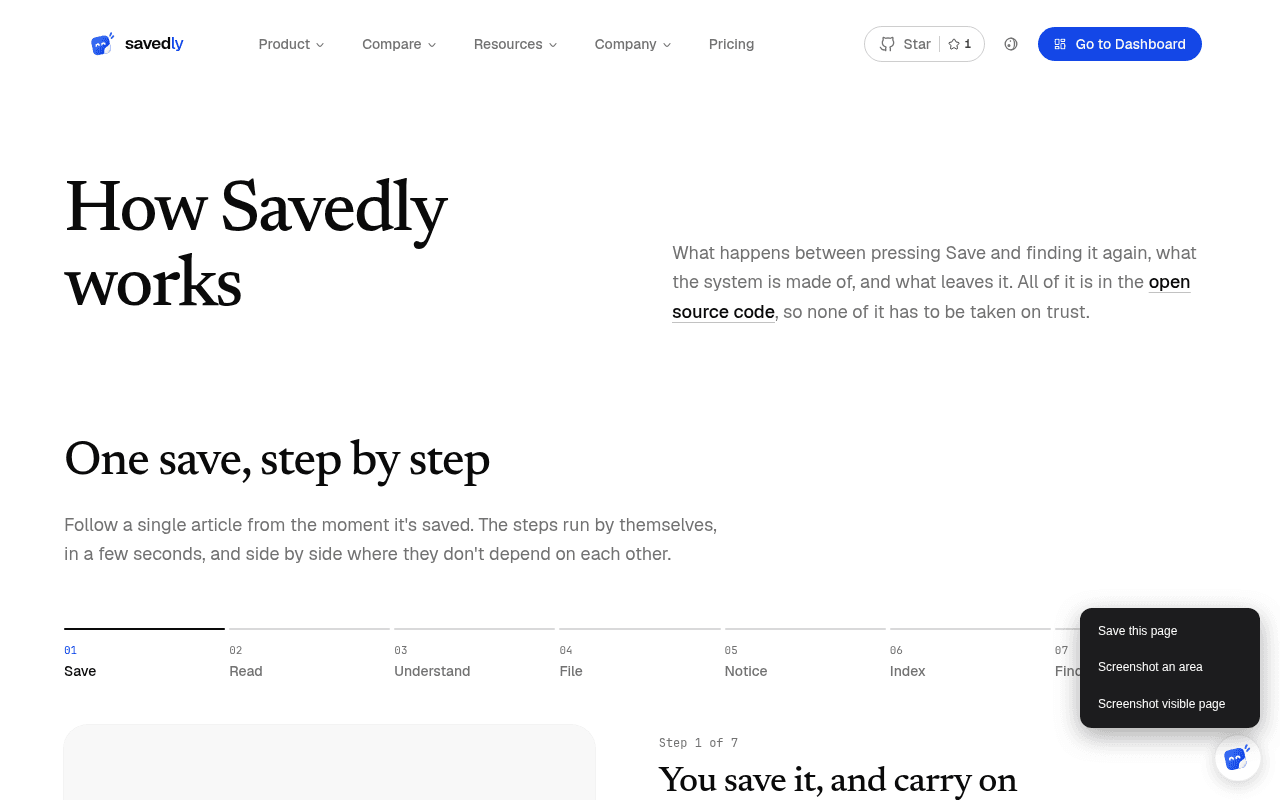
If you'd rather not see it, turn it off with the eye icon at the top of the extension's popup. The toolbar icon, right-click menu and shortcut keep working.
Privacy
Nothing about a page is sent until you choose to save it, and the extension doesn't collect your browsing history. The privacy policy has the details.